
Before we start you'll need
- Autodesk 3ds Max (2010 or 2012 works best)
- Steve-M RWAnalyze Tool — Log in or sign up to download
Alright so first off you're going to obviously load the object in which you want to edit in 3ds Max,
After this you want to create a Dummy where you want the effect to appear in-game.
(CLICK HERE TO FIND OUT HOW TO CREATE A DUMMY)
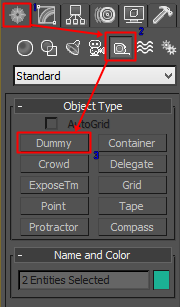
After doing so, you want to select the object and assign the dummy to the object in Graph Editor.
(CLICK HERE TO FIND OUT HOW TO ASSIGN THE DUMMY)

After you open this window you should see two boxes; one with your object name and one named dummy. It'll be called schematic view or something of that nature.
In this window you should see a box with a name that says "Schematic View 1" you want to change this to "2dfx".
(SCHEMATIC VIEW) (CHANGE NAME FROM THIS) - (TO THIS)
After this you want to select "Hierarchy Mode" along with "Connect". When in connect mode, you want to select "Dummy01" and drag it over to the object's name, it should be a thin line.
(CLICK HERE TO FIND OUT WHAT HIERARCHY & CONNECT MODE LOOKS LIKE) (HOW TO CONNECT)
After that's done, you cant exit that window. You're going to add the effect to the dummy now, you should have installed DexX's Maxscript inside of your 3ds Max Program.
You want to Start "DexX Tool" and select "Run SA Effects" then you want to select the dummy,
When you open "Run SA Effects" you want to open the drop-down box "Setup/Add Effects".
(WHAT THE SETUP/ADD EFFECTS WINDOW LOOKS LIKE)
At "Setup / Add Effects" click "Add Particle Info (Dummy)" (important: click only one time). Then you want to open the box "Setup / Edit Particles" and chose the effect that you want to see in-game, effect names can be found here.
(WHAT THE SETUP/EDIT PARTICLES WINDOW LOOKS LIKE)
Choose the Effect and hit "Apply to Dummy" after doing that, you're going to export the particle info.
Click Section "Export Effect Info" and export info file.sae (name is unimportant). After this Select Dummy + Object [ALL] and export all with Kam's maxscript as *.dff (skip col).
Now you're done with 3ds Max, you're going to start using the program called RW Analyze,
Start RW Analyze and open the *.dff to assign the effect.
Right click on the very first object "CLUMP" and select "Collapse Child Sections".
(WHAT COLLAPSE CHILD SECTIONS SHOULD LOOK LIKE)
Go to "Clump (Double click on the blue dot in order for these to appear) > Geometry List > Geometry > Extension",
After this, right click on "Extension" and add "Add Section".
(WHAT ADDING SECTION LOOKS LIKE)
After this, insert Section Type 0x253F2F8
(THIS IS WHAT YOU INPUT INTO SECTION TYPE)
Rightclick on 2dfx(R*),Import Section Data and insert *.sae (The effect info you exported from 3ds Max)
SAVE! (You're now done)