

In order to use the public text and voice chat channels on the Bay Area Roleplay Discord server, you must first verify the Discord account is yours, by linking it to your forum account. This tutorial will run through how to go about verifying a Discord account.
Step one - Message Maccer
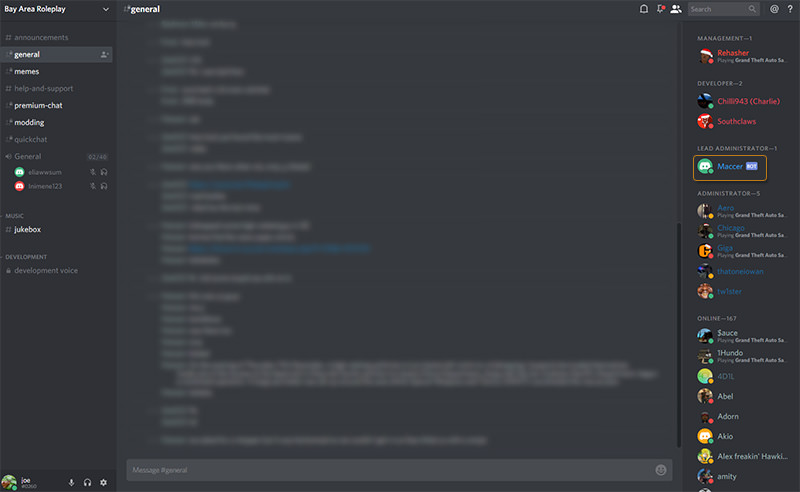
Maccer is the Bay Area Roleplay Discord bot, as signified by the 'BOT' tag next to his name. In order to verify your account, you must message the word 'verify' to Maccer. You can either do this by clicking on his name in this tree and typing the word 'verify' in the short message box in the popup, or by right clicking his name and pressing 'Message'.
Step two - Give Maccer your forum profile URL
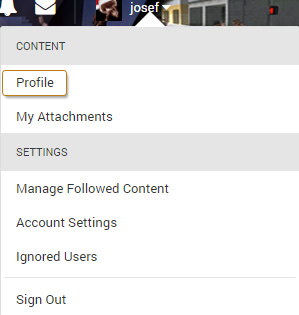
Maccer seems to be quite the nosy bugger doesn't he! He wants to know your forum profile URL. In order to find this, click your username at the top of the forum. On the drop down list that appears, beneath the Content section, click 'Profile'.

The whole of the profile URL is significant, so make sure to copy the whole thing, and then paste it in your conversation with Maccer, preceded by 'verify', like so:

Step three - Paste the verification code into the profile field
Maccer will then provide you with a verification code. It is important that you paste this code into the correct place, otherwise your account will fail to verify correctly.

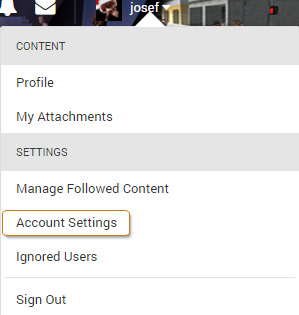
As you can see from the above screenshot, my verification token is 7004d0db-0cb5-4f49-af7a-b0bbf836f93e. So in order to verify my account, I go back to the drop down at the top of the page, but this time I click 'Account Settings' rather than 'Profile'.
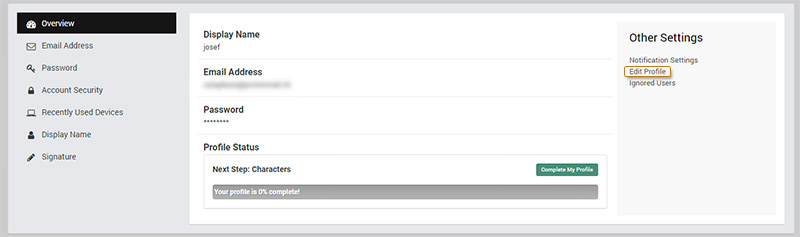
Then on the Account Settings page, using the side navigation bar headed by 'Other Settings', click 'Edit Profile'.
On the dialog box that pops up, scroll down to the bottom. You will find an input box labelled 'Discord'. Paste your verification token into that box and click 'Save' in the bottom right.

All done!
Once you have completed the above process, you will receive a message from Maccer, stating that your Discord account has been verified successfully. You will be granted access to the text and voice chat channels. Have fun, and be sure to abide by the Discord rules.
Note: If you don't have the ability to talk in the channels right away, merely restart Discord and this issue should be resolved.